How to use the case board
The case board keeps the front desk, the operator and the TV at the crematorium in step. A case saved at the desk shows on every screen within a second.
1. Get started
Each screen is paired once. There are no passwords. The role you pick decides what the screen can do.
| Role | Who | What it can do |
|---|---|---|
| Admin | The manager | Everything, including editing cases and removing devices |
| Front desk | Desk PC | New cases, cert and bill, delivery, collect, cancel, report |
| Operator | Crematorium tablet | Done and Hold |
| TV | Wall TV | Shows the board only |
The first device: the manager's phone
- On the manager's phone, open board.envoice.my.
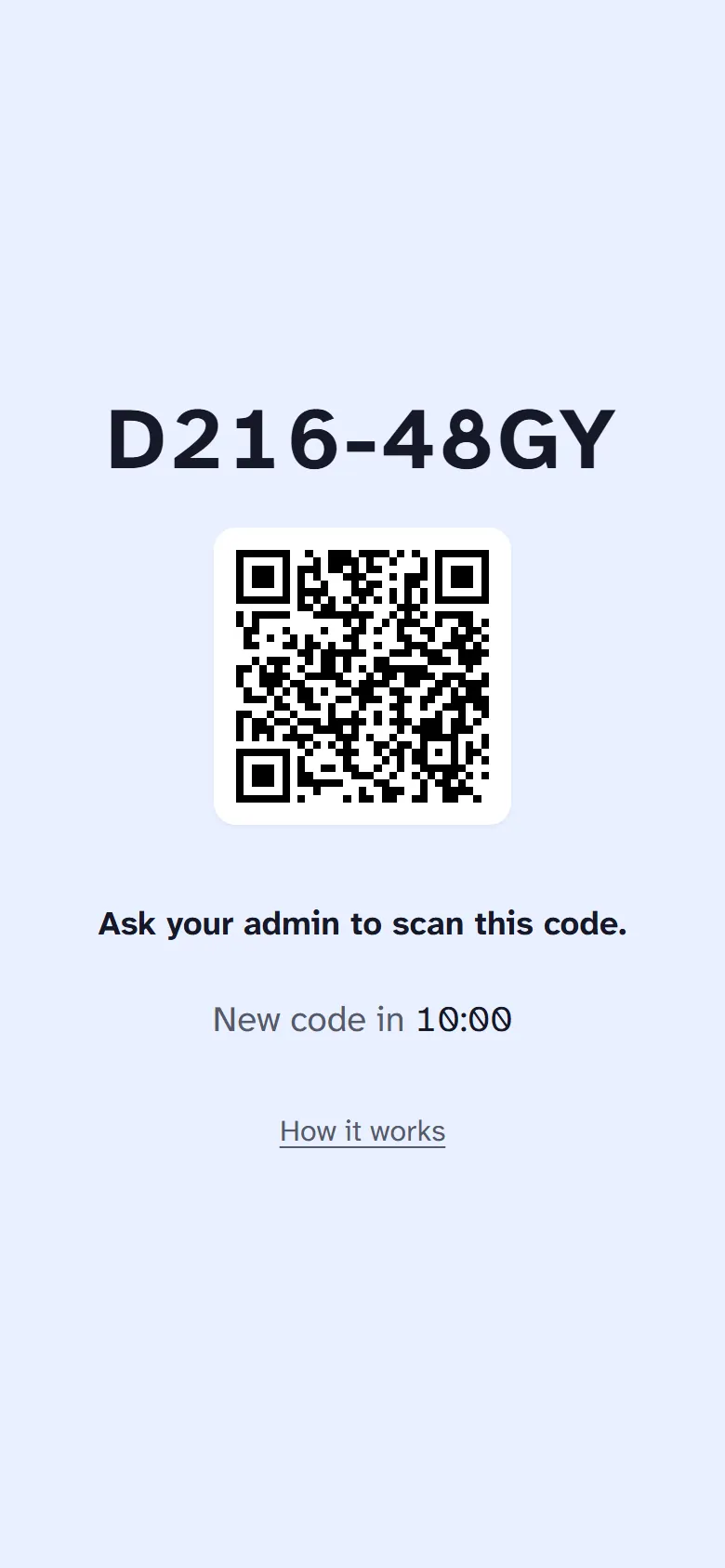
- The screen shows a code, for example 7KQ2-M9XD, and a QR code.
- Send the code to the envoice team. A photo of the screen is fine.
- The envoice team approves it as Admin. The phone opens the front desk within a few seconds.
You only do this once. After that, the admin phone adds every other screen.
Add the TV, the desk PC and the operator tablet
- On the new screen, open board.envoice.my. It shows a code and a QR code.
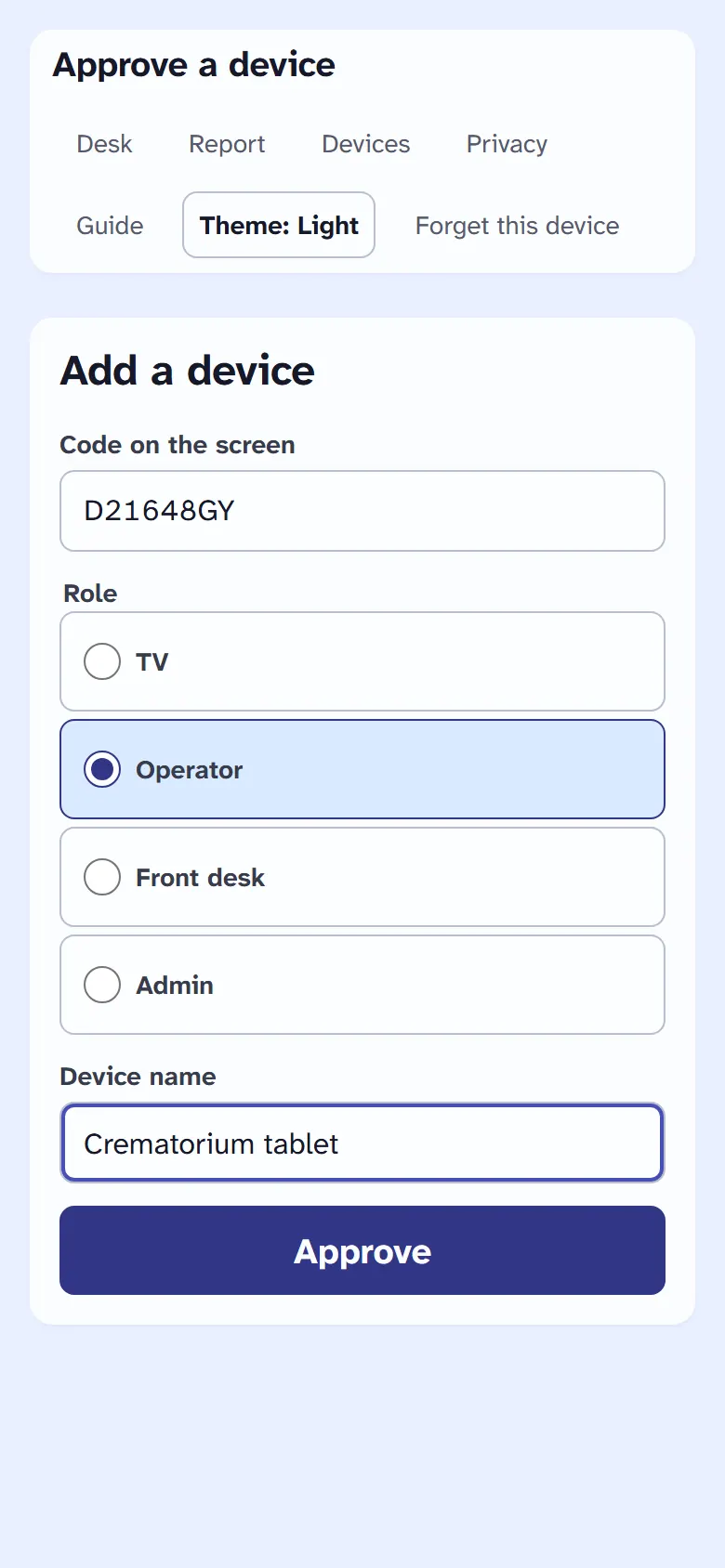
- Scan the QR code with the admin phone's camera. The Approve a device page opens with the code filled in.
- Under Role, pick TV, Operator, Front desk or Admin.
- Type a Device name, for example Wall TV or Desk PC.
- Tap Approve. The new screen opens its board within a few seconds.
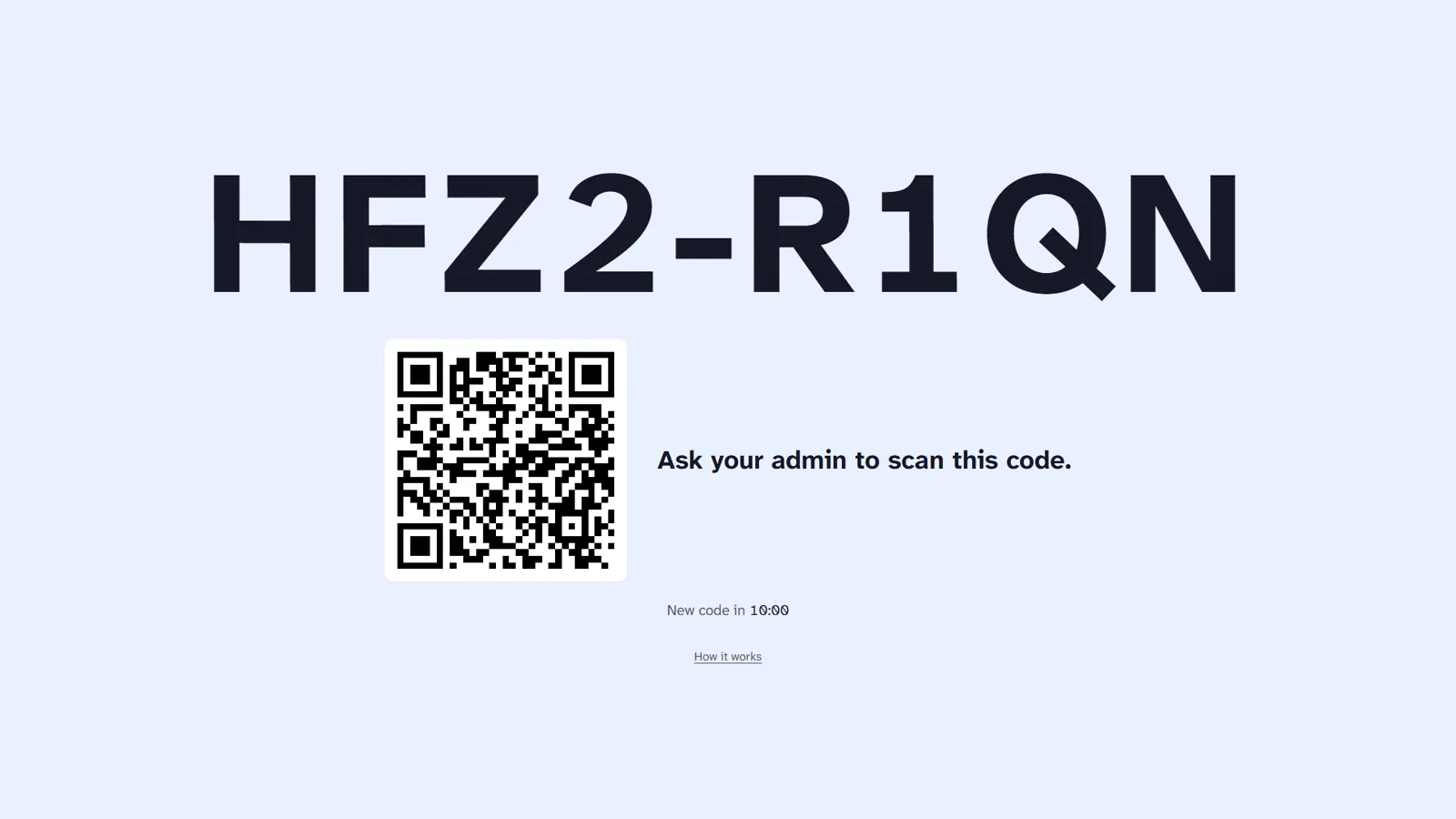
The QR code opens in the phone's normal browser. Pair the admin phone in that same browser, or the phone shows its own pairing code instead.
If the camera will not scan
- On the admin phone, tap Devices.
- Under Code on the screen, type the 8 characters from the new screen. Small letters and the dash are fine.
- Pick the Role, type the Device name and tap Approve.
Codes last 10 minutes. The screen shows "New code in" with a countdown and gets a new code by itself. A front desk device can also add a TV or an operator tablet, but only the Admin can add a front desk or another Admin.
2. Front desk
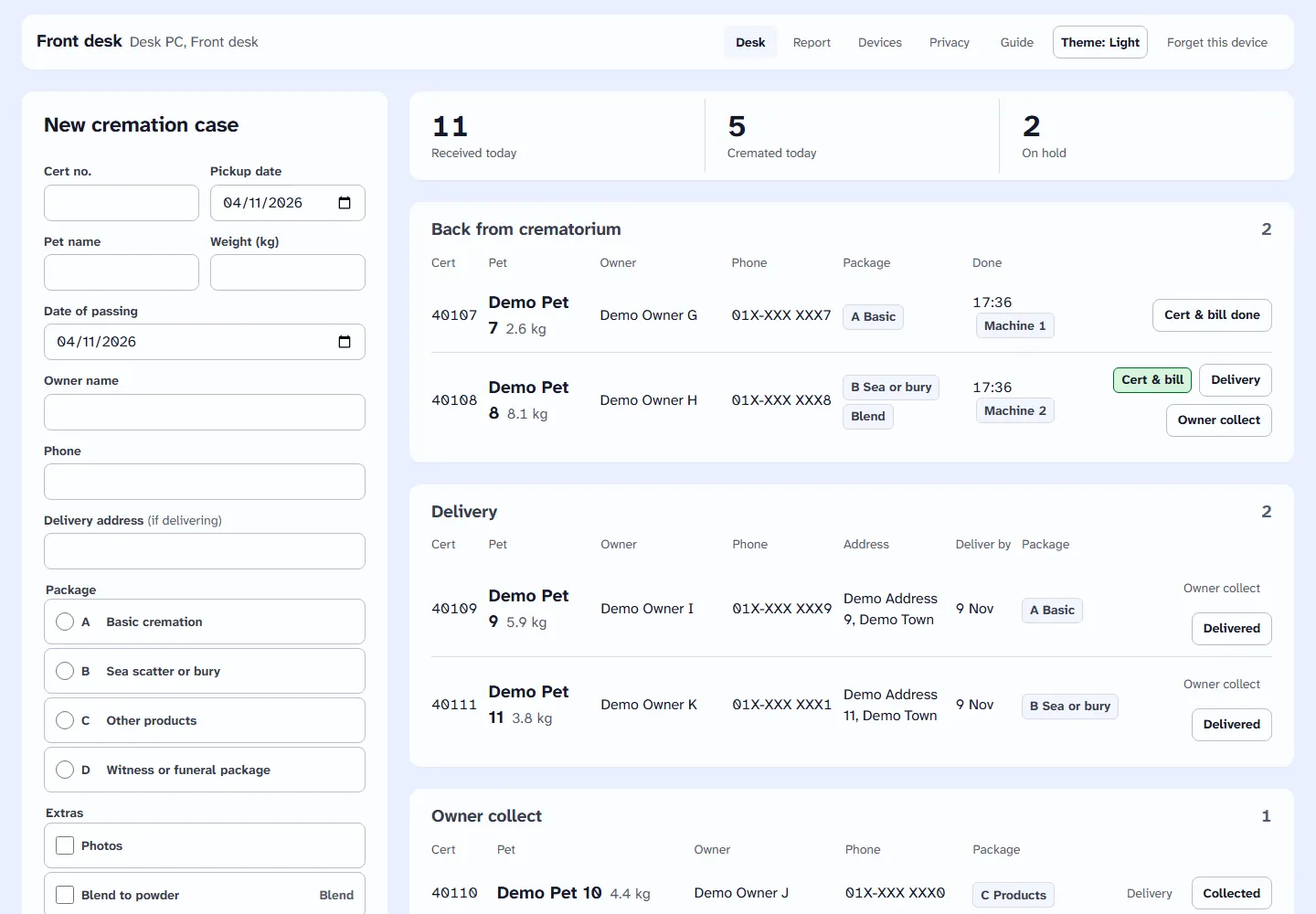
The desk shows the new case form, then four lists: Back from crematorium, Delivery, Owner collect and At the crematorium.
Add a new case
- Type the Cert no. from the paper form (5 digits).
- Check the Pickup date. It starts on today.
- Type the Pet name and the Weight (kg).
- Set the Date of passing.
- Type the Owner name and Phone.
- Type the Delivery address only if the ashes will be delivered.
- Pick the Package.
- Tick any Extras. For one with an amount, such as Flowers, tap the amount or type it in RM.
- Turn on Urgent if the case must go first.
- Tap Send to crematorium. A line at the top confirms it, and the case shows on the TV and the operator tablet at once.
The Enter key moves to the next box. It never saves the form. If something is missing, a Missing line names it. Tap the name to jump to the box.
If the cert number is already on another case, you see "Already on another case". Check the paper form. You can still save, as paper forms sometimes repeat a number.
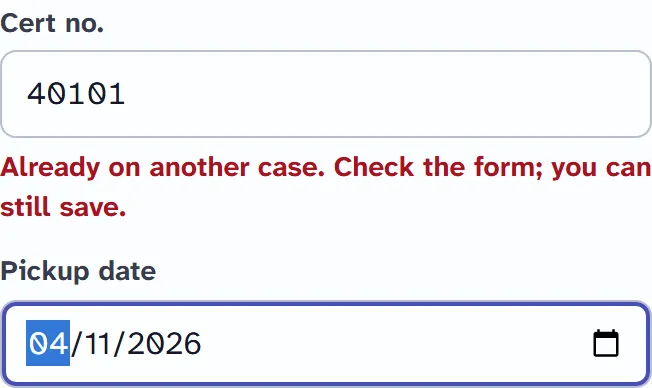
After saving, the front desk cannot change a case. Tap the pet name to see its details and history. To fix a mistake, ask the manager (Admin).
Cancel a case
There is no delete. Cancel the case instead. You can cancel while it is in the queue or on hold, not after the operator marks it Done.
- In At the crematorium, tap Details on the case.
- Under Cancel case, type the Reason.
- Tap Cancel case. It leaves every screen. The report counts it as cancelled.
Cert and bill
- When the operator marks a case Done, it shows in Back from crematorium.
- Prepare the cert and the bill, then tap Cert & bill done.
- Tap Delivery or Owner collect.
After each tap a message shows at the bottom with Undo. Undo works for 10 seconds.
Delivery
- Tap Delivery. If the case has no address yet, type it and tap Save and book delivery.
- The case moves to the Delivery list. Deliver by shows the last day.
- When the ashes are delivered, tap Delivered.
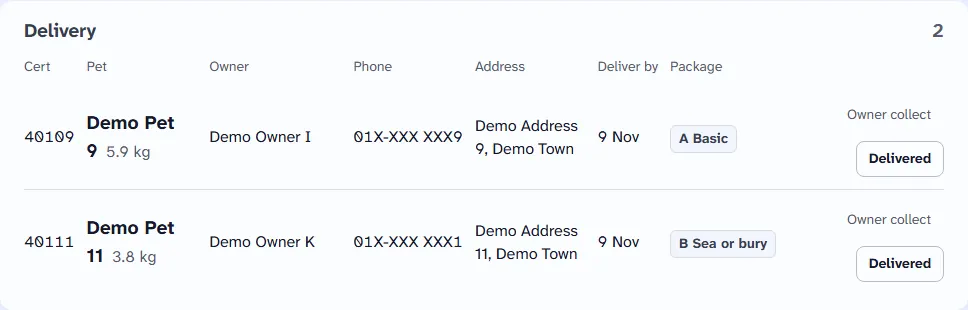
Deliver by is 3 working days after the day the case was marked Done. Monday to Friday count; Saturday and Sunday do not. For example, Done on a Wednesday means deliver by Monday. Public holidays are not taken out, so in a week with a holiday, allow one more day yourself. After that day the case shows Overdue.
Owner collect
- Tap Owner collect. The case moves to the Owner collect list.
- When the owner takes the ashes, tap Collected.
Plans change: in the Delivery list tap Owner collect, or in the Owner collect list tap Delivery, to move the case across.
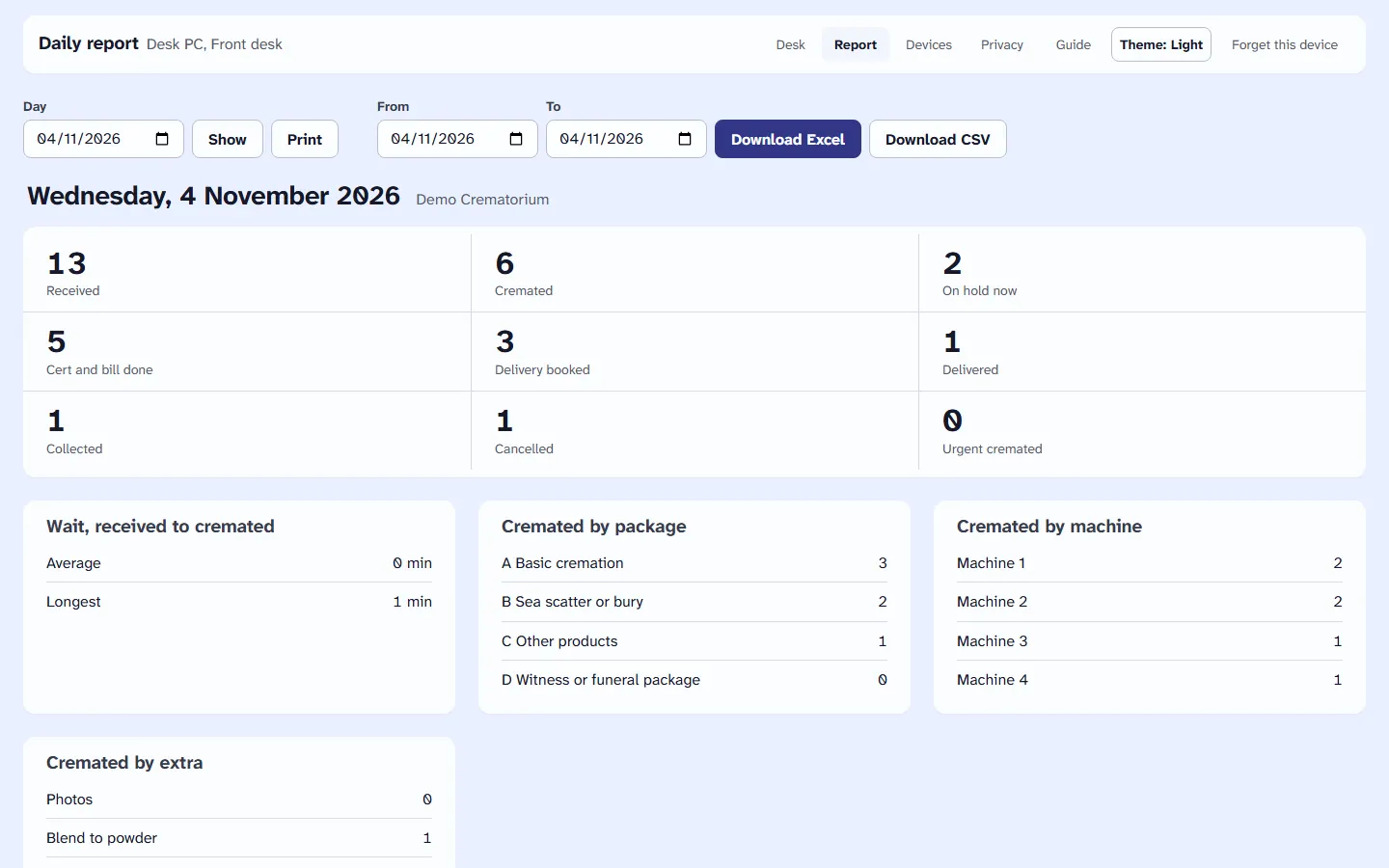
Daily report
- Tap Report in the top bar.
- Pick the Day and tap Show. You see what was received, cremated, billed, delivered, collected and cancelled, how long cases waited, and what is on hold now.
- Tap Print for a paper copy.
- To keep a file, pick From and To and tap Download Excel or Download CSV.
3. Operator
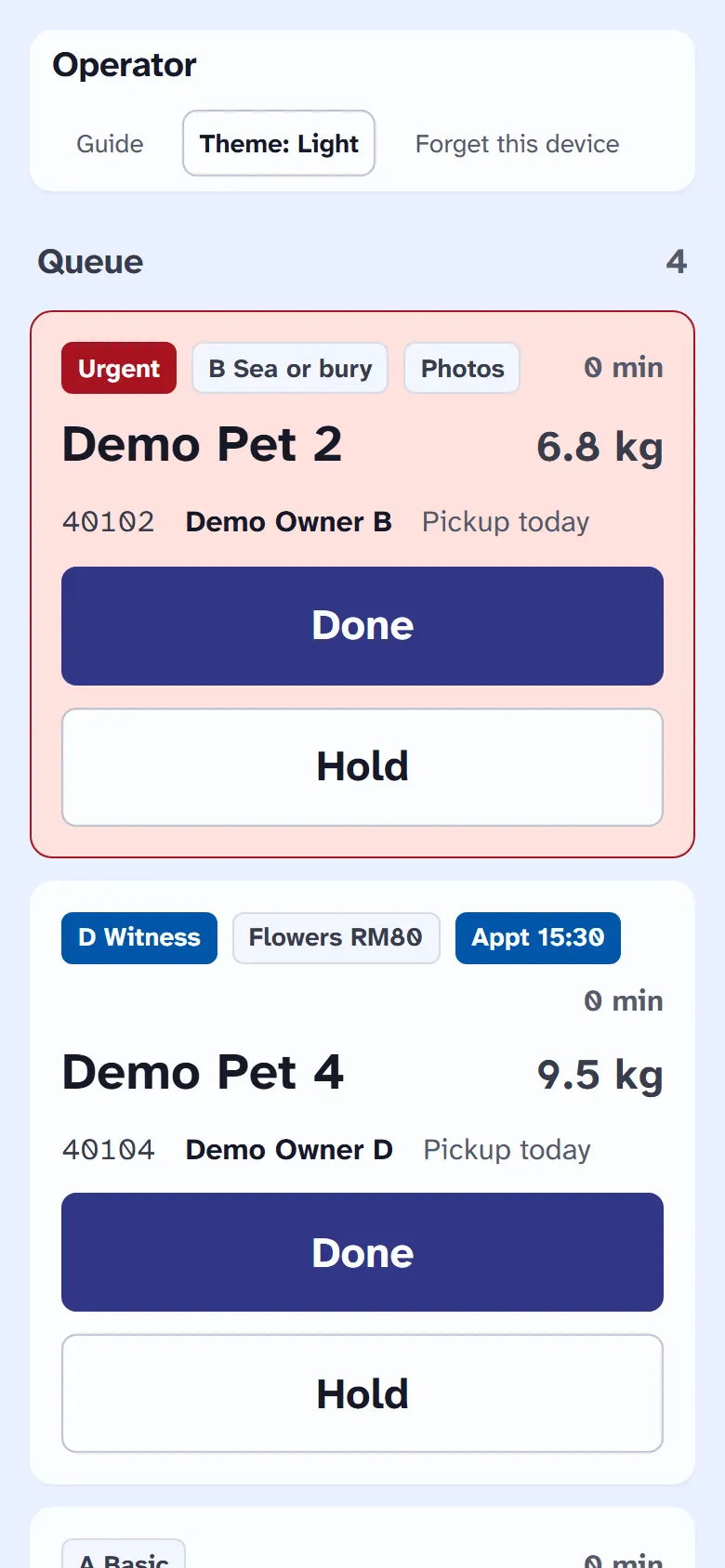
The operator tablet shows the Queue, On hold and Done today. Urgent cases are at the top of the queue, then witness cases. Each card shows the package, extras, the time since the case was saved, the pet, its weight, the cert number, the owner's name and the pickup day. It never shows the owner's phone or address.
Mark a case Done
- Tap Done on the case.
- Tap the machine number you used.
- The case moves to Done today and to the front desk. Tapped the wrong one? Tap Undo within 10 seconds.
Put a case on hold
- Tap Hold on the case.
- Tap a reason. If none fits, type it in Other reason and tap Hold.
- The case moves to On hold with its reason. The TV shows it under Pending & reason.
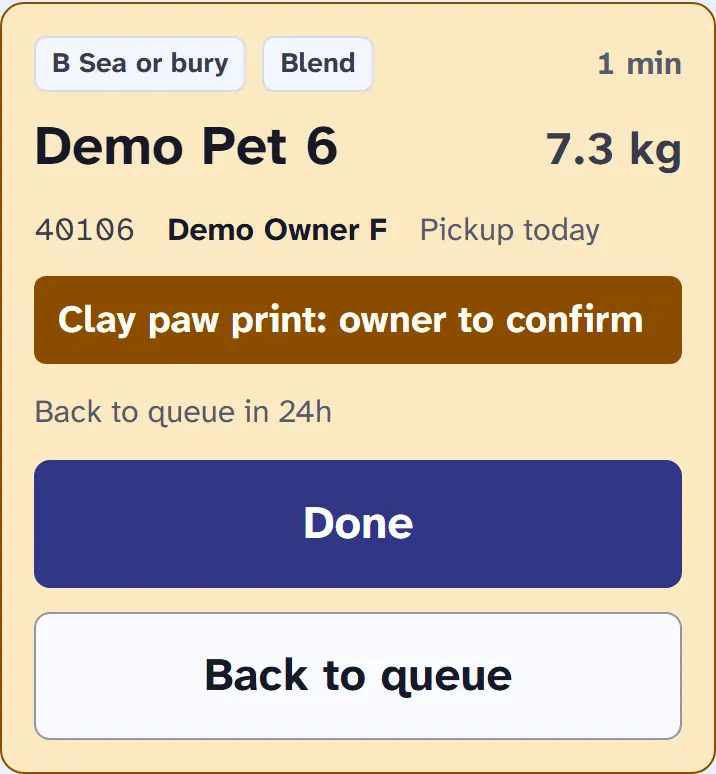
- When it can go ahead, tap Done, or Back to queue.
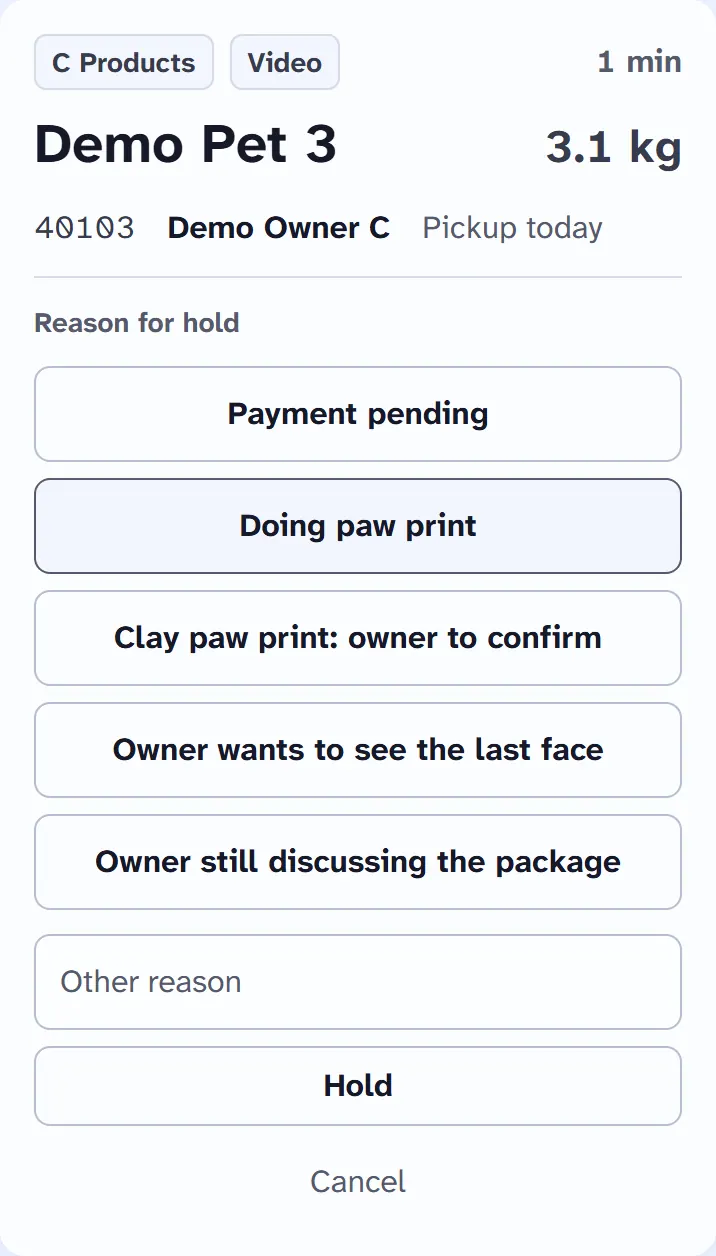
Clay paw print
Pick Clay paw print: owner to confirm. The card shows "Back to queue in 24h" and counts down. After 24 hours the case goes back to the queue by itself. If the owner answers sooner, tap Done or Back to queue.
Witness cases with an appointment
When the front desk picks the witness package (D), an Appointment box appears. With a time, the case shows "Appt 15:30". On the TV, witness cases have their own Express column, earliest appointment first.
4. The TV
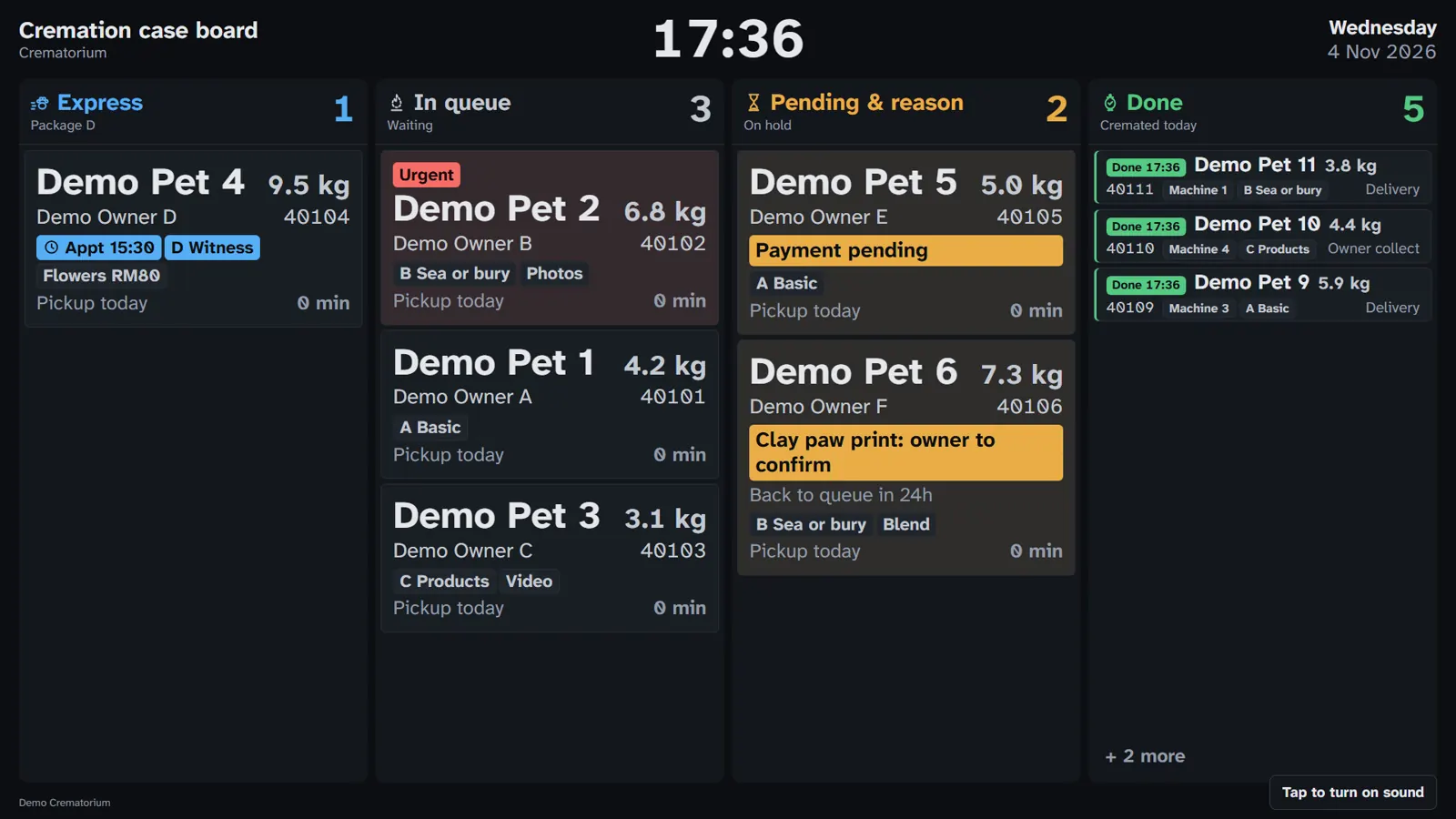
The TV has four columns:
- Express: witness cases (package D), earliest appointment first.
- In queue: cases waiting, urgent first.
- Pending & reason: cases on hold, with the reason.
- Done: cases cremated today, with the time and the machine.
Each card shows the pet's name and weight, the owner's name, the cert number, the package and extras, and the pickup day. Urgent cases have an Urgent flag. The wait time turns amber after 4 hours. Done cards say where the case is now: At front desk, Delivery, Owner collect or Closed. When a column is full the cards get smaller, then the last ones fold into "+ 3 more".
Turn on the sound
- After the TV opens the board, tap the screen once, or tap Tap to turn on sound.
- The TV goes full screen and stays awake. A new case plays a chime and gets a blue frame for 5 seconds.
Browsers only play sound after a tap. After a reload or a power cut, tap once more.
Reconnecting
"Reconnecting. Last update 14:05." means the screen has lost contact for more than 5 seconds. It keeps trying by itself and catches up when the connection is back. Until then it shows the last update.
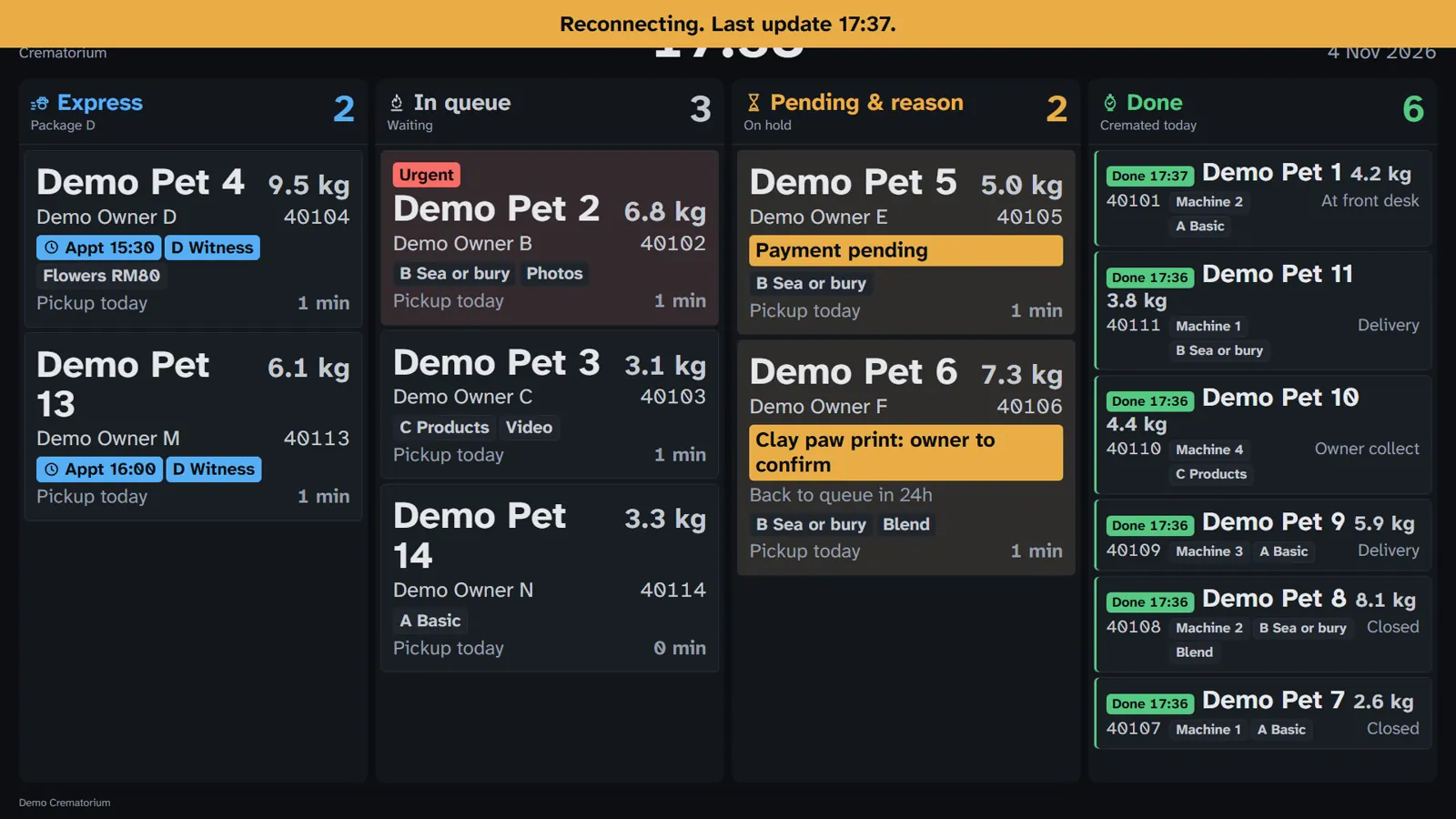
The TV is always dark and never shows an owner's phone or address. A phone paired as a TV shows the same board, one column under the other.
5. Manager (Admin)
The admin phone sees the front desk with every button, plus the Devices list.
Edit a case
- On the desk, tap the pet name (or Details).
- Change what is wrong: cert number, dates, owner, address, package, extras or Urgent.
- Tap Save changes. You see Saved, and every screen updates.
If someone changed the same case on another device first, you see "Changed on another device." Tap Reload and make your change again. The History under the form lists every change and which device made it.
Add a device
Scan the new screen's QR code, or type its code in Devices. See Get started.
Remove a device
- Tap Devices.
- Under Paired devices, tap Revoke next to the device.
- Tap OK. The device can no longer open the board and goes back to the pairing screen.
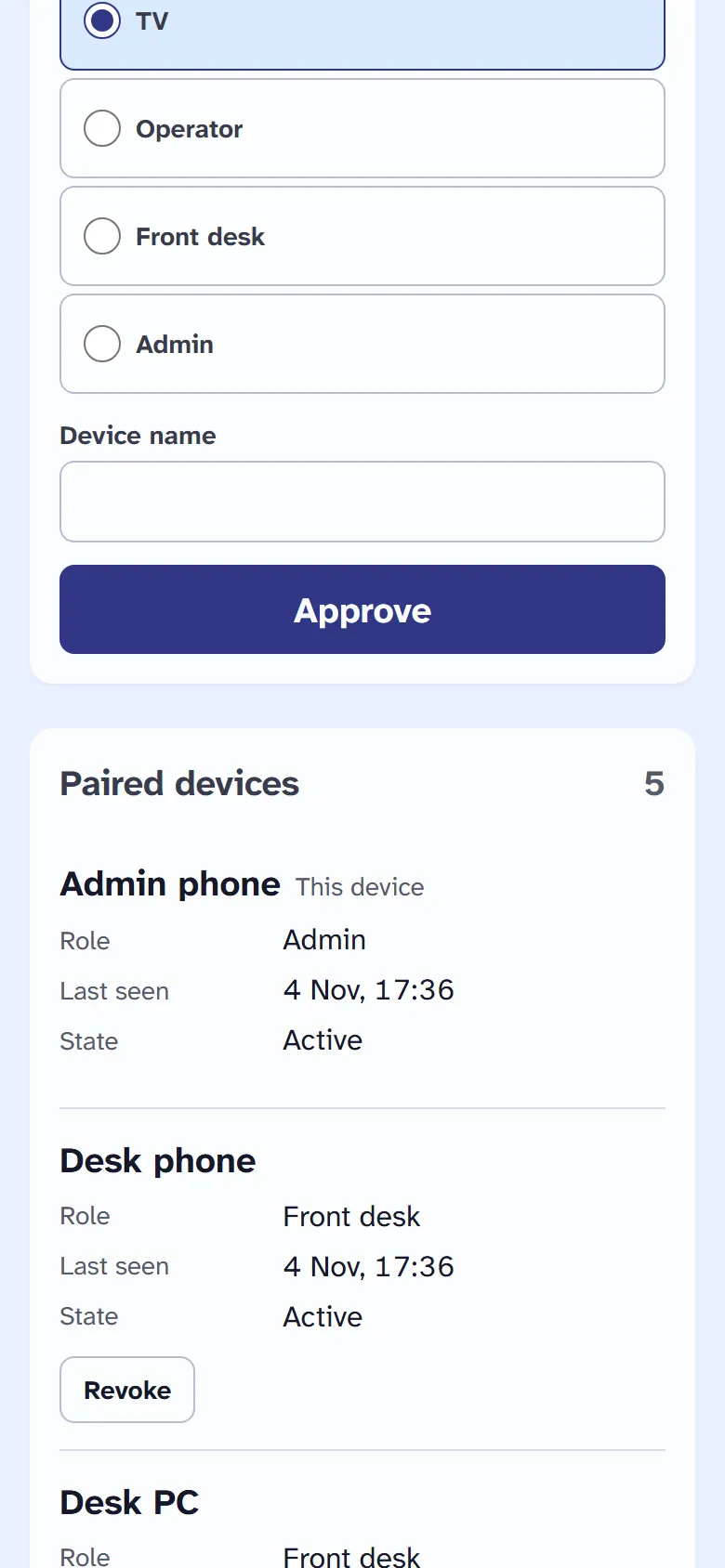
A device that is not used for 90 days stops working and shows as Expired. Pair it again to use it.
Forget this device
On a device you are giving away, tap Forget this device in the top bar, then OK. It goes back to the pairing screen. For a lost or stolen device, use Revoke from another admin device instead.
Theme
Tap Theme: Light to switch to dark, or Theme: Dark to switch back. It is saved on that device only. The TV is always dark.
Download everything
On the Report page, the Admin also has Download everything: every case and every change in one Excel file.
6. Questions
I lost my phone, or I have a new one.
On another admin device, open Devices and tap Revoke next to the lost phone. It can no longer open the board. Then pair the new phone like any other screen. If the lost phone was your only admin device, ask the envoice team to approve the new phone as Admin, the same way as the very first device.
The code on the screen expired.
Nothing to do. Each code lasts 10 minutes and the screen gets a new one by itself. Scan or type the code that is on the screen now. After 10 wrong codes, wait 10 minutes before trying again.
I typed the wrong cert number.
Ask the manager. Only the Admin can change a saved case: tap the pet name, fix Cert no. and tap Save changes. The change is listed in the case history.
I picked the wrong package.
The same as a wrong cert number: the Admin opens the case, picks the right Package and taps Save changes. The TV and the operator tablet show the new package at once.
The TV shows Reconnecting.
The TV has lost contact with the board for more than 5 seconds. It keeps trying by itself and catches up when the connection is back. The time in the banner is the last update it got. If it stays, check the TV's Wi-Fi or internet.
A case is missing from the board.
A cancelled case leaves every screen at once. A delivered or collected case leaves the front desk lists at once, and the TV's Done column only shows cases cremated today. Open Report and pick the day to find it. On the TV, a full column shows "+ 3 more" at the bottom for cases that do not fit.
Who can edit a case?
Only the Admin can change a case's details. The front desk can add cases, cancel them, and move them on (cert and bill, delivery, collect). The operator can mark Done and Hold. The TV cannot change anything.
How long are owner details kept, and how do we delete them?
The owner's name, phone and address are deleted by themselves 12 months after the case is closed or cancelled, or 18 months after it was saved if it is still open. The pet's details and the dates stay, so the report counts do not change. If an owner asks to see their details, use Download Excel on the Report page for that day. To delete them sooner, ask the envoice team. The full notice for owners is on the privacy page.
Can we have more than one TV?
Yes. Pair each TV with the role TV. Every TV shows the same board at the same time.
Does it work on a phone or a tablet?
Yes. Every screen works in the browser of a phone, a tablet or a PC. Nothing to install. A phone paired as a TV shows the columns one under the other, with the cases on hold first.
What happens when the internet is down?
Every screen keeps the last update and shows Reconnecting. The Done, Hold and desk buttons are turned off until the connection is back, so note it on paper for now. A new case that cannot be sent shows "No connection". Tap Send to crematorium again later: the same case is never saved twice.
The TV makes no sound.
Tap the TV screen once. The browser only plays sound after a tap, and it forgets it after a reload or a power cut. The board also reloads by itself after an update, so tap again if the sound stops.